
How to Turn a Postman Collection into an MCP Server
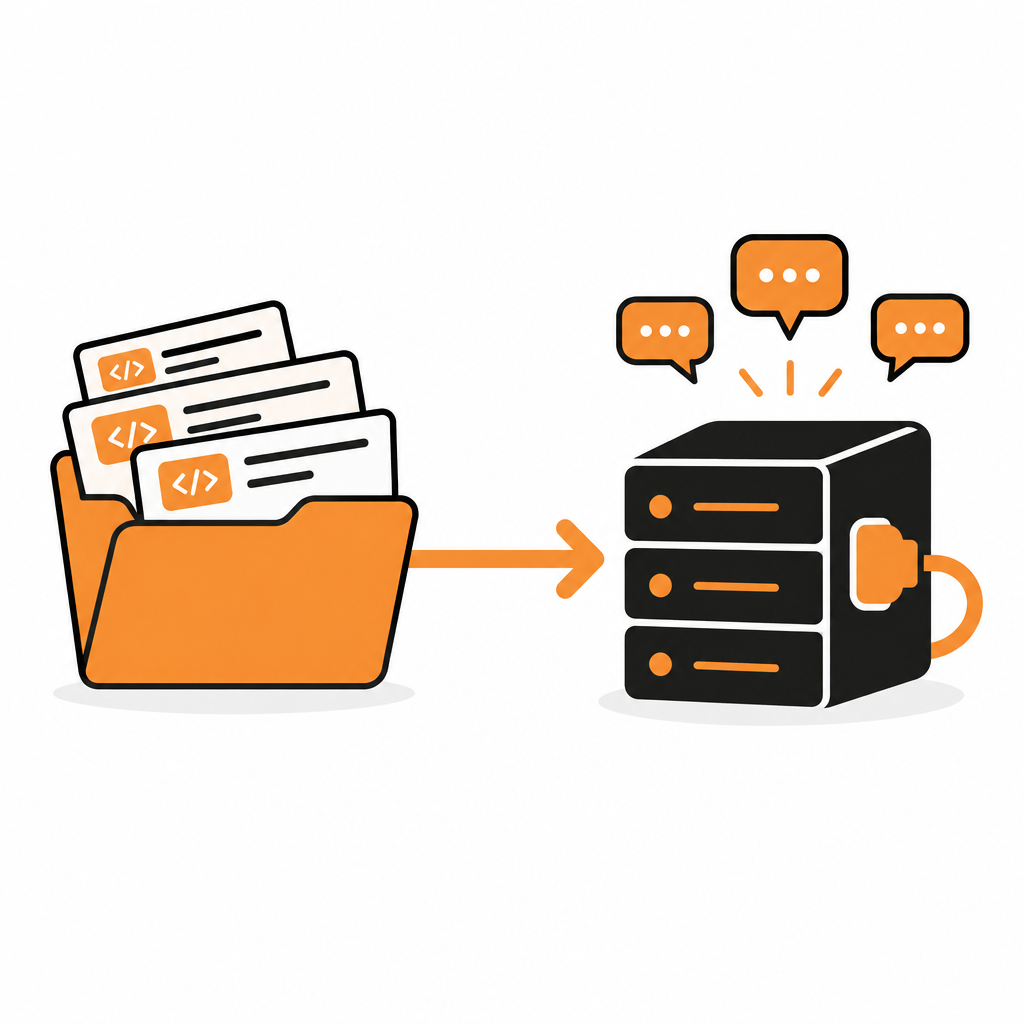
Plenty of APIs are described by a Postman collection and nothing else. The team tests in Postman, shares the collection with partners and never got around to writing an OpenAPI spec. Now users want to call that API from Claude, Cursor or ChatGPT, and most MCP tutorials start with "take your OpenAPI file".
You don't need one. This guide shows how to turn a Postman collection into a hosted MCP server, how to set up sign-in, and how to describe your endpoints so assistants pick the right one. It also covers the other routes honestly, so you can choose.
Who has a Postman collection but no OpenAPI spec?
More teams than you'd think:
- Internal and older APIs that were built before anyone wrote a spec.
- Partner APIs shared as a collection link or an exported JSON file.
- QA and support teams who keep the most complete, most tested set of requests.
- Integrators who wrapped someone else's API in a collection for their own use.
In each case the collection already holds the methods, URLs, headers and example bodies. That is most of what an MCP server needs. New to MCP? Start with What Is an MCP Server?
Three ways to get from Postman to MCP
| Import into DocStar | Convert to OpenAPI, then generate | Postman MCP Generator | |
|---|---|---|---|
| Starting point | Your exported collection .json |
A spec generated from your collection | Public API requests on the Postman API Network |
| What you get | A hosted MCP server URL, plus docs and a CLI | Server code you run and host | A downloadable server you run |
| User sign-in | OAuth or API key, configured in the MCP tab | You build it | You configure it |
| Stays in sync | Publish the docs | Re-convert and regenerate | Regenerate |
| Best for | Sharing your API with every user's assistant | Teams that want full control of the server code | Wrapping public APIs for your own use |
The rest of this guide covers the first route step by step. The others are described further down.
Step by step: Postman collection to MCP server with DocStar
1. Export the collection from Postman
In Postman, click Collections in the sidebar, open View more actions next to your collection, choose More > Export collection, then click Export JSON. Environments are exported separately, so note the values your requests rely on, such as a base URL variable.
2. Import it into DocStar
In DocStar, click the collection name at the top of the left sidebar, choose Import collection, drop in the .json file and click Import. DocStar creates a new API collection with your requests and folders. Full details are in Import Content.
Imported pages and endpoints start as drafts, so nothing is public yet.
3. Review endpoints and auth
This is where a test collection becomes something an assistant can use. Go through each endpoint:
- Base URL. If your requests used Postman variables, make sure each endpoint points at the real base URL. DocStar's Environments and Authorization settings cover this.
- Auth. Check the auth header or parameter on each endpoint matches what your API expects.
- Names. Rename requests verb-first, the way a user would ask:
Create Invoice, notPOST invoice v2 (copy). - Bodies. Give each write endpoint a full JSON body example with every accepted field, and describe each field.
- Secrets. Remove any real tokens or customer data that were saved in the collection.
Only the endpoints you want assistants to reach need to be published. Leave test-only requests unpublished.
4. Publish
Publish the module pages and endpoints. Unpublished endpoints never appear in the MCP server.
5. Copy your MCP server URL
Open the collection's settings and the MCP tab. DocStar has already created the server. The URL looks like this:
https://mcp.docstar.io/connector/your_collection_slug
The slug is set when the collection is created and never changes, so this URL stays stable. You can also serve the server from your own domain, such as mcp.yourcompany.com.
6. Choose how users sign in
In the MCP tab you decide who can connect and how calls are authorised:
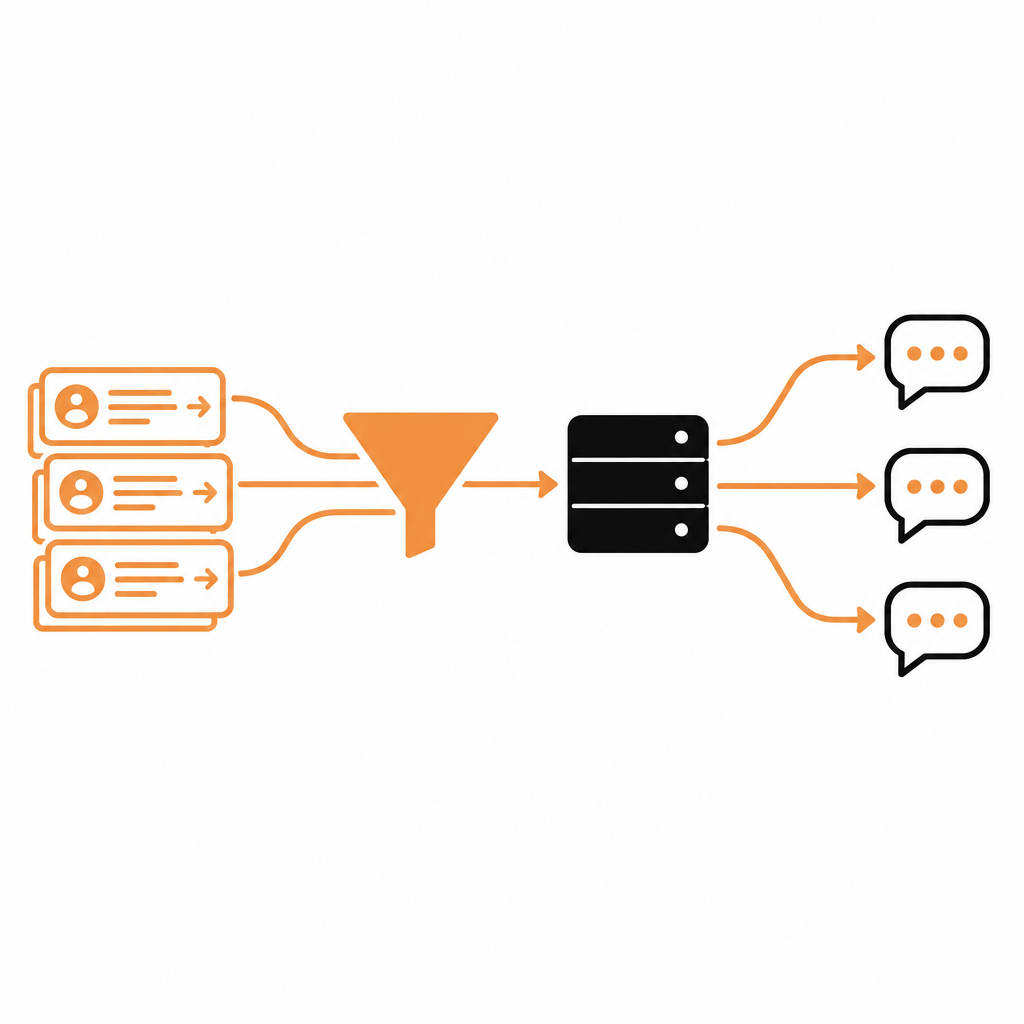
- OAuth sign-in. Under Sign-in for API calls, enter your authorization URL, token URL, client ID and secret, and a token validation URL. Add every redirect URI shown in the tab to your OAuth app. The first time an assistant calls your API, the user signs in, and each call runs with their own access.
- API keys. For key-based APIs, the server includes a key tool, so a user gives their key once instead of pasting it into prompts.
- Private docs. Turn on Require sign-in when connecting if nobody should even search the docs without signing in.
7. Connect it in Claude, Cursor and ChatGPT
In Claude Code:
claude mcp add --transport http acme https://mcp.docstar.io/connector/acme
In Cursor or VS Code, add it to your MCP settings:
{ "mcpServers": { "acme": { "url": "https://mcp.docstar.io/connector/acme" } } }
In ChatGPT or Claude Desktop, add a custom connector and paste the URL. The MCP tab gives ready-made snippets for each client, and this guide has setup steps you can copy into your own docs.
Tips for good tool descriptions
Assistants choose tools from the words you write. A collection written for testing usually needs a pass:
- Say when to use each endpoint, not just what it is, and mention any required order: "call Create Customer before Create Invoice".
- Give your top actions their own tools. You can turn up to 20 published endpoints into named tools such as
create_invoice. Names can be up to 45 characters. - Set safety hints. Mark tools read-only, destructive or idempotent so assistants know when to ask before running them.
- Write the skill. DocStar generates a short quickstart that assistants read first. Rewrite it with your main workflows and rules.
- Add short instructions for rules that always apply, like "ask for the account ID before creating an order". Keep them under 2,000 characters.
Then test like a user: connect the server, ask for a real task in plain words, and watch which tool the assistant picks. If it picks wrong, fix the description and publish again. More on this in How to Turn Your API into an MCP Server.
The other routes, honestly
Convert to OpenAPI, then use a generator
Postman can generate an OpenAPI 2.0, 3.0 or 3.1 spec from a collection in Spec Hub (More > Generate specification). Open-source converters such as postman-to-openapi on npm do the same from the command line. With a spec in hand, tools like FastMCP's from_openapi() or openapi-mcp-generator produce MCP server code.
This gives you full control, but you host the server, add sign-in and regenerate when the API changes. FastMCP's own docs note that curated servers tend to work better for LLMs than auto-converted ones, so expect to edit the result.
Postman's MCP Generator
Postman has an MCP Generator. Its documented flow lets you pick requests from public APIs on the Postman API Network, then download a generated server to run yourself. It supports stdio and streamable HTTP. It suits wrapping public APIs for your own use. For your private collection, check Postman's current docs.
FAQ
Do I need an OpenAPI spec to build an MCP server from Postman?
No. DocStar imports the Postman collection .json directly. You can also add endpoints later in the editor or from cURL.
Will my Postman folders carry over?
Yes. The import creates a collection with your requests and folders. Review names and descriptions before you publish.
Can assistants change data through the server?
Only through the endpoints you publish. Reads and writes are separate tools, and with sign-in every call runs with the user's own permissions.
What happens when I add a request to the Postman collection?
The MCP server follows your published DocStar docs, not Postman. Add or update the endpoint in DocStar and publish, and connected assistants see it without a deploy.
Can I also get a CLI?
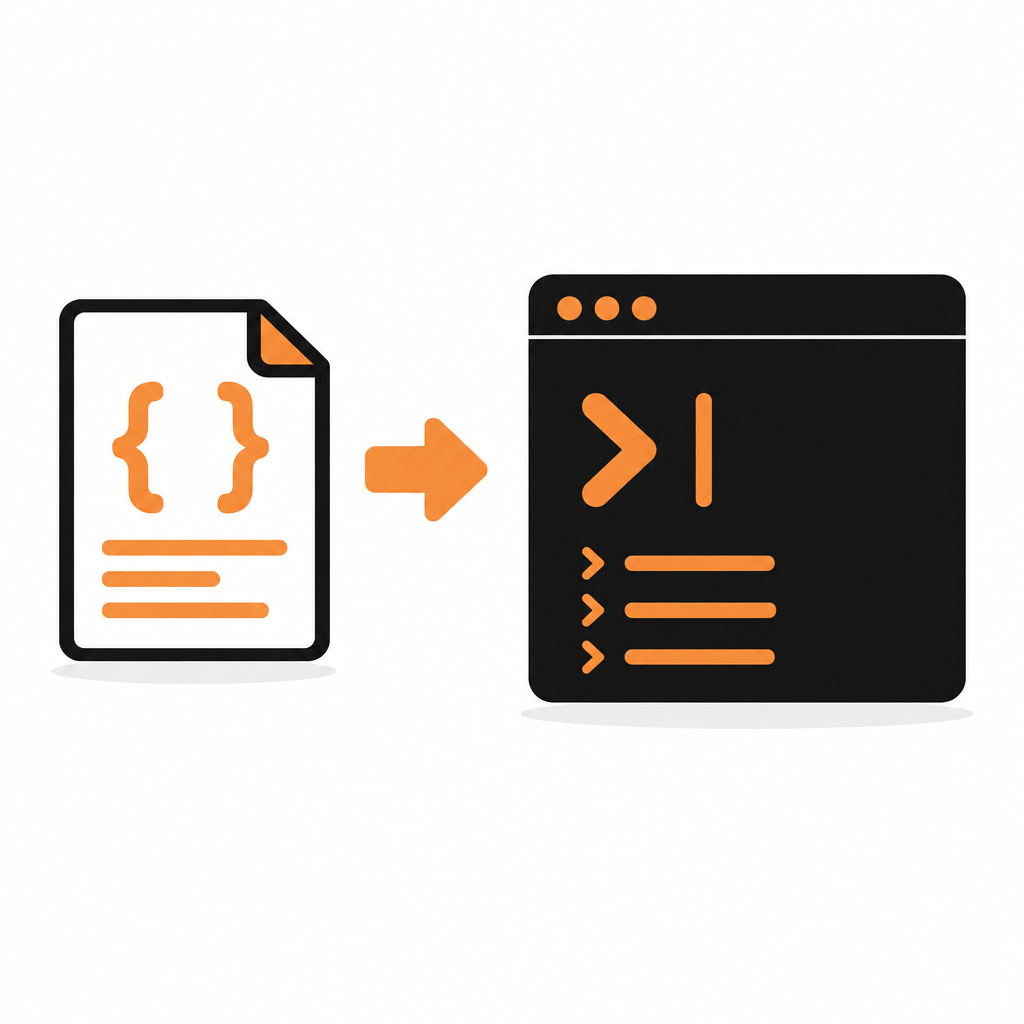
Yes. The same published collection works with docstar-cli, which turns each endpoint into a terminal command.
Get your MCP URL
Export your collection, import it, publish, and your MCP server is live. Start free on DocStar.
Keep reading

MCP Server Authentication Explained: OAuth, API Keys and Sign-In
How MCP server authentication works: OAuth 2.1, protected resource metadata, client registration, bearer tokens, API keys, consent and common mistakes.
How to Generate a CLI from Your OpenAPI Spec
Generate a CLI from your OpenAPI spec for developers and AI coding agents. Compare open-source and commercial generators with DocStar's no-codegen CLI.