
MCP vs CLI for AI Agents: When to Use Which (and Why DocStar Gives You Both)
MCP vs CLI, in one answer: an MCP server gives an AI assistant a list of tools it can call over a standard protocol, with sign-in handled for each user. A CLI gives an agent shell commands it runs in a terminal. MCP fits chat assistants and per-user access; a CLI fits coding agents and scripts. With DocStar you don't have to choose: one published API collection gives you both.
That last part is why we wrote this. Teams keep asking us whether they should ship an MCP server or a CLI for their API. With DocStar, you document your API once, and your users get a hosted MCP server and runnable docstar-cli commands from the same docs. Better still, you don't have to set either up by hand: your coding agent does it, and you review.
MCP vs CLI: how each one works
Both are ways for an AI agent to use your API. They differ in where the agent runs and how it finds and calls things.
| MCP server | CLI | |
|---|---|---|
| What the agent sees | A list of named tools with descriptions and input schemas | Commands, flags and --help text |
| Where it runs | Any MCP client: Claude, ChatGPT, Cursor, VS Code, Codex | Anywhere the agent has a shell: Claude Code, Codex, Cursor's terminal, CI |
| How it finds the right action | Reads tool names and descriptions | Runs list or --help, then picks a command |
| Auth | Per-user sign-in (OAuth) or API keys, handled by the server and client | Keys or a login stored on the machine |
| Best for | Chat assistants, non-developers, per-user access to your product | Coding agents, scripts, pipelines, quick terminal checks |
| Output | Structured tool results | Text or JSON on stdout, plus exit codes |
Pick MCP when your users live in chat assistants, need to sign in with their own account, or aren't developers. One URL in Claude or ChatGPT and they can use your product in plain language.
Pick a CLI when the agent already has a terminal. Coding agents are good at shell commands, can pipe output into other tools, and can check exit codes. It is also handy for humans who just want to try an endpoint.
Pick both when you have both kinds of user, which is most API companies. That is where most of the "MCP vs CLI" debate lands, and it's the case DocStar is built for.
How MCP and CLI work together in DocStar
In DocStar, your API documentation is the source for everything. Publish an API collection and you get:
A hosted MCP server for the collection. Its URL looks like
https://mcp.docstar.io/connector/your_collection_slug. Assistants can search and read your docs, read your API reference and call your API. Only published content is visible; drafts never reach your MCP server. See Build an MCP Server for Your App.CLI commands for every published endpoint. Anyone can run
docstar-cli <collection> <module> <endpoint>, for exampledocstar-cli acme orders create-order. The CLI reads your docs each time a command runs, so there is no SDK to generate and nothing to keep in sync. See the DocStar CLI help page.A local MCP server from the CLI.
docstar-cli mcpserves the registered endpoints as MCP tools over stdio, namedcollection__module__endpoint. Useful when a developer wants the tools locally in Claude Code or Claude Desktop.
The same sign-in works across both. If you set up OAuth sign-in for your MCP server, CLI users sign in with docstar-cli login <collection>, and you add one extra redirect URI (https://api.docstar.io/p/cli-auth/callback) to your OAuth app.
So the honest answer to "MCP or CLI?" for a DocStar team is: write good docs, and ship both from one place.
Let your coding agent set up both
DocStar is built to be run by AI agents. You don't need to click through settings to get an MCP server and a CLI. Here's the main path.
1. Connect your agent to the DocStar MCP
Add https://mcp.docstar.io/mcp to Claude Code, Cursor, Codex or another assistant (or add DocStar from your assistant's connector directory). The first time the agent needs your workspace, you sign in to DocStar in your browser. There is no API key to copy, and the agent gets the same permissions your DocStar account has. Step-by-step setup for each client is in Connect your AI assistant.
2. Give it one prompt
Open your API's repo and paste:
Use the DocStar MCP to turn my app's API into an MCP server and a CLI. First read https://docstar.io/mcp/quickstart.md and follow it step by step. Read my latest code for the API, not an old OpenAPI file, and document each endpoint with a clear description, every parameter and a full JSON body example. Pick the 10 endpoints our users need most as MCP tools, write the skill, and tell me which endpoints should need sign-in. Save everything as drafts and ask me before you change or publish anything. When you're done, give me the MCP URL and the docstar-cli commands to try.
[Screenshot: Coding agent showing its plan for documenting endpoints in DocStar]
3. What the agent does
Working through the DocStar MCP, the agent:
Reads your code and documents each endpoint in a DocStar API collection: purpose, auth, headers, path and query params, a request body example and sample responses.
Gets your MCP URL for the collection.
Picks your main tools. You can give up to 20 of your most important endpoints their own tools. Everything else stays available through a general "call any API" tool, so nothing is lost.
Writes the skill, the short guide assistants read before they use your API: what it's for, the usual order of calls, limits, and which actions to confirm first. DocStar generates a default skill from your docs; the agent improves it with what your code reveals.
Adds instructions, the rules assistants follow every time they connect.
Asks before it changes anything, and leaves new pages as drafts for you.
The CLI needs no extra step. Once the endpoints are published, docstar-cli can run them.
4. What you do
The agent does the typing; you make the calls only a person should make:
Review the drafts. Check descriptions, examples and naming. Decide what stays private and doesn't get documented.
Choose tone and naming for tools and the skill.
Enter your OAuth app details if your API needs a signed-in user: authorization URL, token URL, client ID and secret, and a token validation URL. Then add the redirect URIs DocStar shows to your OAuth app. The secret stays on the MCP server and is never shown again. (We cover this in MCP Server Authentication Explained.)
Publish. Nothing reaches your MCP server or the CLI until you do.
5. Try both
In Claude or ChatGPT, add your MCP URL and ask for something in plain language. In a terminal:
npm install -g docstar-cli
docstar-cli list acme            # modules in your collection
docstar-cli auth status acme     # what it needs, and whether it's set up
docstar-cli acme orders list-orders
Built for agents on both sides
DocStar's CLI and MCP were designed with agents as the main users, not an afterthought.
CLI sign-in that works one command at a time. When an agent runs the CLI,
docstar-cli login acme --no-waitprints the sign-in link and exits, anddocstar-cli login acme --continuefinishes after the person signs in.Clear exit codes.
0is success,1means the API returned an error, and4means a key or sign-in is missing, with a message that says how to fix it. Agents can branch on these.Keys stay out of the agent's context. Credentials live in
~/.docstaron the user's machine and go only to the API being called. The CLI never reads environment variables or.envfiles. For "create API key" tools,docstar-cli key request,key saveandkey emitstore a new key without the assistant ever seeing it.Self-describing commands.
docstar-cli listshows each endpoint's method, required parameters and whether it needs a key or sign-in, so an agent can find the right command without guessing.Per-user MCP sign-in. With sign-in turned on, anyone can still connect and read your docs, but assistants call your API as the signed-in user, with their own account on your platform.
Keep it current
An MCP server or CLI that lags behind your API is worse than none, because agents will call endpoints that no longer work. With DocStar, both read from your published docs, so keeping docs current keeps both current.
Make it part of your agent's routine. The DocStar quickstart has the agent add a short block to your AGENTS.md or CLAUDE.md so future sessions know where your docs live. Then, after a change ships, ask:
I changed the orders routes in this PR. Use the DocStar MCP to update the matching endpoints in our API collection (match by method and path, or create new ones), update the MCP skill if the call order changed, and save as drafts. Show me the diff before publishing.
You review and publish. The next MCP call and the next docstar-cli command use the new docs. No SDK to regenerate, no server to redeploy.
Prefer to click?
You can do everything above in the DocStar app. Create an API collection, add or import your endpoints, publish them, then open the collection's Settings → MCP tab to copy the MCP URL, set up tools, skill, instructions and sign-in. The CLI works as soon as the endpoints are published.
Why teams choose DocStar for MCP and CLI
One source, two interfaces. Your API docs, MCP server and CLI come from the same collection. No separate MCP project, no generated CLI to release.
Agent-first setup. Your coding agent documents the API and configures the server through the DocStar MCP. You review and publish.
Hosted MCP with real sign-in. Per-user OAuth, API keys, up to 20 endpoint tools plus call-any-API, an editable skill, and an optional custom domain like
mcp.yourcompany.com.A CLI that never drifts. It reads the live docs on every run.
Docs people can read too. The same collection is a branded docs site with Markdown copies,
llms.txtand SEO built in. See Is Your Documentation Readable by AI?.
FAQ
Is MCP replacing CLIs for AI agents?
No. They solve different problems. MCP is the standard way chat assistants connect to apps and handle per-user sign-in. CLIs remain the natural fit for coding agents with a terminal. With DocStar you ship both from the same docs.
Do I need to write an MCP server or a CLI myself with DocStar?
No. Publish an API collection and DocStar gives it a hosted MCP server, and docstar-cli can run its published endpoints. Your coding agent can do the documentation and setup for you through the DocStar MCP.
Which should I give my users first?
If your users are in Claude, ChatGPT or Cursor chat, share the MCP URL. If they're developers or run coding agents, point them to docstar-cli. Since both come from one collection, you can announce both on day one.
Can a coding agent use DocStar's CLI as MCP tools?
Yes. Run docstar-cli init <collection> to register modules, then add docstar-cli mcp to your client's MCP config. Each endpoint becomes a tool named collection__module__endpoint.
Does the CLI work with sign-in, not just API keys?
Yes. If you set up OAuth sign-in for your MCP server, users run docstar-cli login <collection> once, after you add DocStar's CLI redirect URI to your OAuth app. Tokens are stored locally and refreshed automatically.
Related reading
Get started free
Connect your coding agent to the DocStar MCP, give it one prompt, and ship an MCP server and a CLI for your API from the same docs. Get started free.
Keep reading
MCP vs API: What's the Difference (and How DocStar Gives You Both)
MCP vs API explained: what each does, when you need both, and how DocStar turns your API docs into a hosted MCP server your AI agent sets up for you.
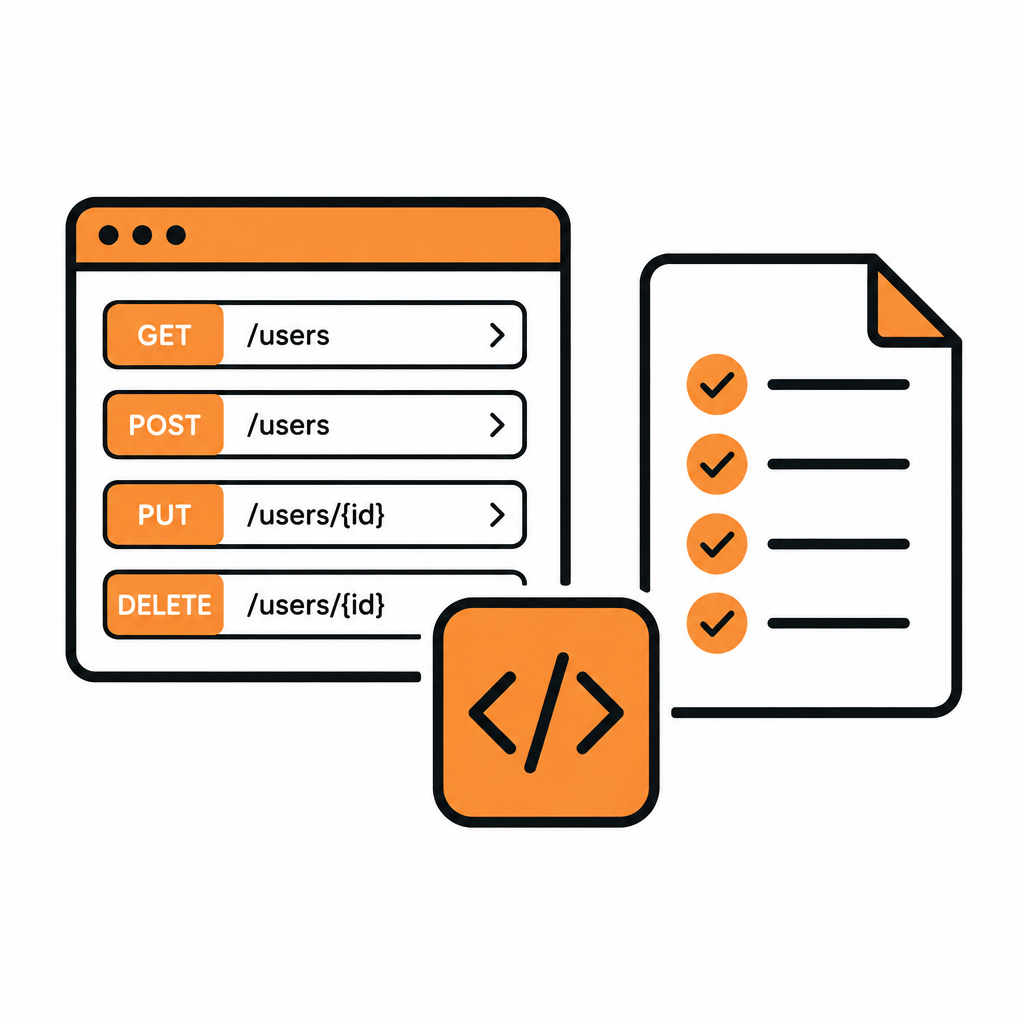
How to Document a REST API with DocStar: Let Your AI Agent Draft It
Document a REST API with DocStar: your AI coding agent drafts every endpoint from your code, then you review, test and publish an interactive API reference.