
Your Docs Are Now an AI Agent's Toolkit: Meet DocStar MCP Servers
AI assistants have become a front door to software. Developers ask Claude how to call an endpoint before they open a browser tab. Support teams ask an assistant how a feature works. When the AI can't see your documentation, it guesses, and wrong answers about your product get blamed on your product.
DocStar fixes this by giving every documentation collection its own MCP server. Your docs stop being pages an AI might have scraped months ago. They become a live toolkit an agent can use directly: search the docs, read the API reference, and even call your API.
What is MCP, and why should docs teams care?
The Model Context Protocol (MCP) is an open standard for connecting AI assistants to outside tools and data. An MCP server describes a set of tools ("search these docs", "call this API"), and any MCP-compatible assistant can discover and use them.
For a docs team, that means you no longer hope a model was trained on the latest version of your docs. You give it a direct line to the current, published one.
Every collection gets a server
When you create a collection (anything except an embed collection), DocStar provisions an MCP server for it. There is nothing to deploy or host. Each server gets a readable connect URL based on the collection's slug:
https://mcp.docstar.io/connector/your_collection
The collection's MCP tab also generates the setup snippet, so connecting is one line. For Claude Code, for example:
claude mcp add --transport http my-docs https://mcp.docstar.io/connector/your_collection
Clients that use a JSON configuration get a ready-made mcpServers block instead.
What an agent can do with your docs
Every server comes with built-in tools:
- Search your docs. Semantic search over your published pages returns the most relevant passages with their page URLs, so the assistant can answer and cite its source.
- Browse your API reference. For API collections, the agent walks the reference one module at a time and pulls any endpoint as an OpenAPI file: method, URL, headers, parameters, body example and sample responses.
- Read from your API. A dedicated read-only tool sends GET requests only. It is annotated as read-only, so assistants that ask users to approve write actions can let reads through without friction.
- Call your API. For POST, PUT, PATCH and DELETE there is a separate tool, so you and your users always know which kind of action is happening.
- Send feedback. If something in the docs is wrong or missing, the agent can send feedback to the DocStar team straight from the conversation.
The result: a developer asks "create a test payment for customer 42", and the assistant finds the right endpoint in your docs, builds the request and runs it, without leaving the editor.
Users sign in as themselves
For API collections, you can add the OAuth details your users sign in with. The first time an assistant needs to call your API, the user is asked to sign in, and from then on their token is attached automatically. The AI never sees or stores a credential, and every request runs with that user's own permissions.
Two controls in the MCP tab make this safer:
- Require sign-in when connecting. Flip one switch and nobody can connect to the server, even just to search, until they have signed in. Use it for internal docs and for APIs where even the reference should stay private.
- A consent screen. When someone connects an AI assistant, they see a clear consent page first, so it is obvious what they are authorizing.
APIs that use API keys
Not every API uses OAuth. For key-based APIs, the MCP server includes a key tool, so a user can provide their API key once and have it applied to later calls, instead of pasting a secret into every prompt.
Shape how the AI behaves
A generic tool list only gets you so far. DocStar gives you several ways to tune the experience from the MCP tab:
- A skill. Each server ships with a generated skill, a Markdown guide telling the assistant how to approach your product. Rewrite it with your own recipes and rules, or reset it to the generated version at any time.
- Extra instructions. Add your own guidance on top of the defaults, such as "always confirm before deleting a record".
- Better tool descriptions. Rewrite the descriptions of the built-in tools so assistants pick the right one for your users' questions.
- Dedicated endpoint tools. Give your most important endpoints their own named tools, so common tasks don't depend on the agent finding them in the reference first.
Put it on your own domain
The MCP URL can be white-labeled. Point a domain like mcp.yourcompany.com at DocStar, add the DNS records it lists, and your server is served from your brand. The shared mcp.docstar.io URL keeps working, so existing connections don't break.
Where this pays off
- Developer onboarding. New users go from "how do I authenticate?" to a working API call in one conversation.
- Support deflection. Assistants answer from your current docs, not stale training data.
- Internal tools. Let an assistant run routine operations through your internal APIs, with each person's own access.
- Current answers. Publish a change in DocStar and, once it is indexed, searches through MCP reflect it.
Getting started
- Open any collection and go to its MCP tab for your connect URL and setup snippet.
- Add the server to Claude or another MCP-compatible assistant.
- Ask it a question about your product and watch it search your docs.
- For API docs, add your sign-in details, decide whether to require sign-in, and refine the skill and tool descriptions as you see how people use it.
Prefer the terminal? The DocStar CLI turns the same docs into runnable commands.
Your documentation already explains how your product works. With an MCP server, AI assistants can finally put that explanation to work.
Keep reading

What's New in DocStar: October 2026
October 2026 release notes: MCP servers with sign-in and API keys, the DocStar CLI, collection slugs, a redesigned API reference, Markdown for every page, a BlockNote-based editor…
The New DocStar API Reference: Built for Developers and AI Agents
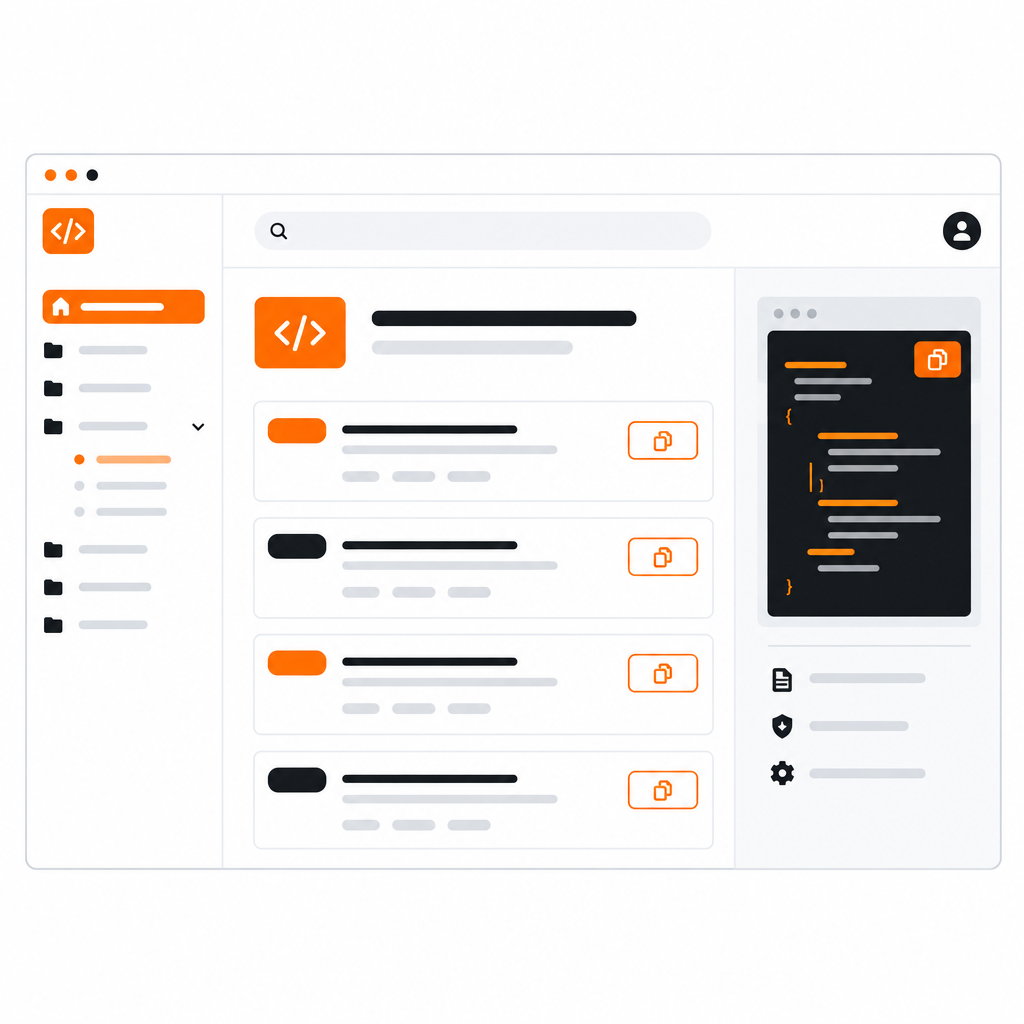
A redesigned API reference with a cleaner layout, a default-selected endpoint, a Copy Prompt button for AI assistants, and a Markdown version of every page.