
How to Write a Changelog People Actually Read (with DocStar)
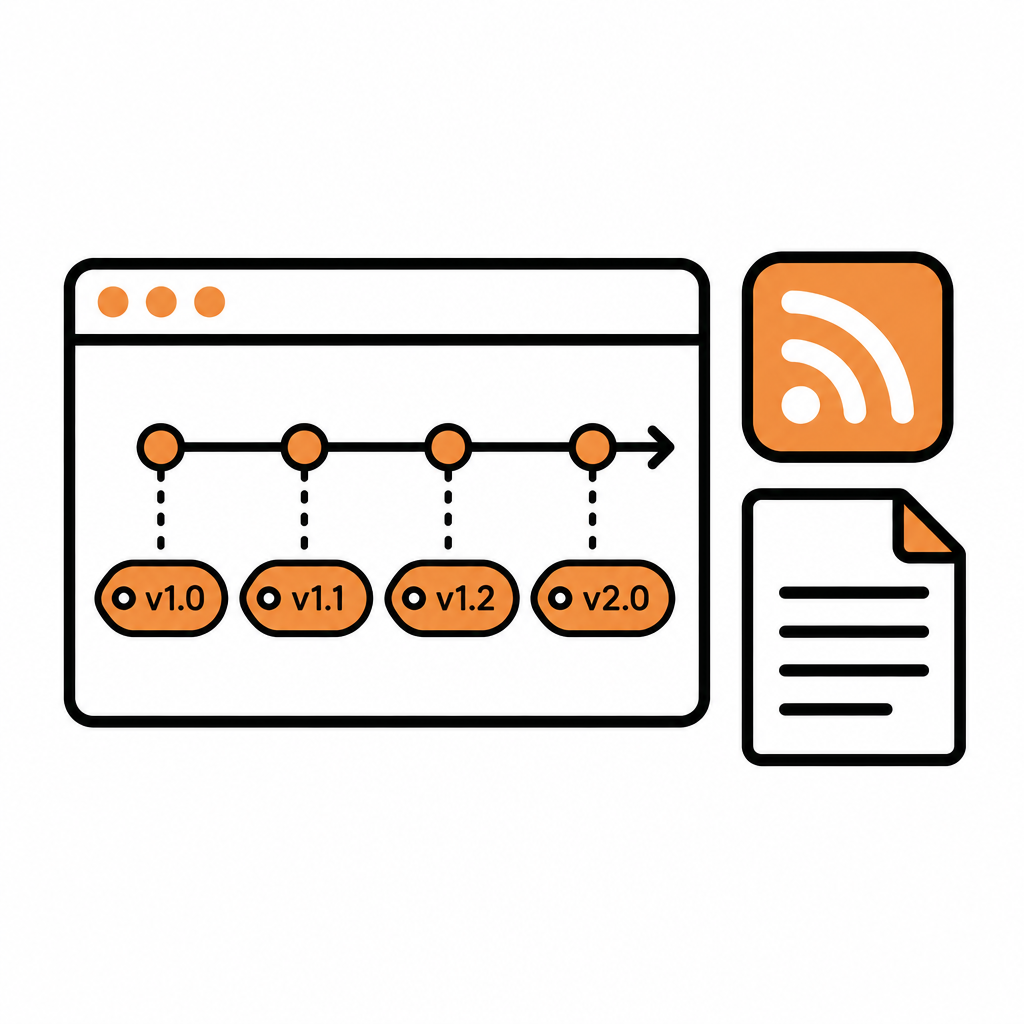
With DocStar, your changelog lives right next to your docs: you write an entry (or let AI draft one from the pages you just updated), pick a version and a tag, review it, and publish it to a public /changelog page with its own RSS feed and a public JSON API. This guide covers how to write a changelog people actually read, then walks through doing it step by step in DocStar.
What makes a good changelog
A changelog is a dated, versioned list of what changed in your product and why it matters to the reader. Before we get to the DocStar steps, here is what the good ones have in common:
One change, one entry. Readers scan. An entry called "Faster search results" is easier to act on than "Improvements and fixes".
A version number people can trust. Semantic versions (major.minor.patch) tell readers how big a change is before they read a word.
A clear type. Is it a new feature, an improvement, a bug fix or a deprecation? A tag answers that at a glance.
Written for the user, not the commit log. Say what someone can now do, what behaves differently, and what they need to change, if anything.
Easy to find and follow. A stable URL, links to the relevant docs pages, and a feed people can subscribe to.
Readable by machines too. Developers wire changelogs into Slack channels and feed readers, and AI assistants increasingly read your public content. Structured entries with versions, tags and dates are much easier for both.
The hard part isn't knowing this. It's keeping it up every release, when the changelog lives in a separate tool from the docs it describes. That's the problem we built the DocStar changelog to solve.
How the DocStar changelog works
Every documentation and API collection in DocStar has a built-in changelog (blogs don't need one). You'll find it under Updates in the collection's left sidebar.
Each entry has:
a version (worked out for you, or typed by hand),
a title,
one tag: Bug Fixes, Deprecation, Improvements or New Feature,
release notes written in the same editor you use for your docs, with headings, lists, links and formatting.
Entries start as drafts. Nothing goes public until you click Publish, and that includes everything AI writes for you.
[Screenshot: DocStar Updates screen with the changelog list and filters]
How to write a changelog entry in DocStar
Step 1: Open the changelog
Open your documentation or API collection and click Updates in the left sidebar. You'll see your existing entries, newest first, with filters across the top.
Step 2: Choose Manual
In Add Change Log, choose Manual.
Step 3: Pick the update type
Pick an Update Type:
Patch, Minor or Major: DocStar works out the next version number from your latest entry. If your last entry was v1.2.3, a patch becomes v1.2.4.
Manual: type your own version, for example
v2.0.0-beta.
You don't have to remember what you shipped last time. DocStar keeps the numbering consistent for you.
Step 4: Add a title and a tag
Write a short, specific title. Then open Tags and pick one: Bug Fixes, Deprecation, Improvements or New Feature. One tag per entry keeps the page easy to scan.
Step 5: Write the release notes
Write the notes in the editor. A simple structure that works well:
### What's new
You can now filter invoices by status in the dashboard and through the API.

### Why it matters
Finance teams no longer need to export everything to find unpaid invoices.

### What to do
Nothing for existing integrations. To use it, pass `status=unpaid`.
See [List Invoices](/api/invoices/list-invoices).
Link to the docs pages the change touches. Because your changelog and your docs are in the same DocStar collection, those links point straight into your own docs.
Step 6: Save, review and publish
Click Add Change Log. Version, title and content are required. The entry is saved but not public yet, so a teammate can review it. When it's ready, click Publish on the entry.
[Screenshot: DocStar Add Change Log form with Update Type, title, tag and editor]
Let DocStar AI draft your release notes
Writing release notes from scratch is the step teams skip when a release is busy. With DocStar you can start from an AI draft built from the pages you actually changed.
In Add Change Log, choose AI Generate.
Under Recent Pages, tick the pages the release notes should cover, or click Select All.
Click Generate.
DocStar drafts the notes in the background (this can take up to 24 hours) and adds the draft to your list when it's ready. The AI compares the current published version of each page with the previous one, so it writes about what changed, not about the whole page. That also means a page needs to have been published at least twice to contribute.
You review the draft, edit anything that's off, and publish it yourself. AI changelog entries never go live without your approval.
[Screenshot: DocStar AI Generate with Recent Pages selected]
Turn on automatic drafts
If you want a draft every time your docs change, turn on Subscribe to changelogs. DocStar then drafts a changelog entry whenever pages in the collection are updated. Drafts still wait for your review, so you get a steady flow of starting points without anything slipping out unreviewed.
This pairs well with the rest of DocStar's AI tools for FAQs, summaries and SEO details. See Write Less, Ship More: How AI Helps You Create and Maintain Docs and AI Features.
Publish, edit and keep entries tidy
Each entry in the list has four actions:
| Action | What it does |
|---|---|
| Publish | Makes the entry public |
| Unpublish | Hides it again |
| Edit | Opens it in the form; save with Update Change Log |
| Delete | Removes it |
If you edit an entry that's already published, readers keep seeing the old version until you publish again. That makes it safe to fix a typo or add a link without a half-finished edit going live.
The filters help when your changelog grows:
| Filter | What it shows |
|---|---|
| Published | Live entries readers can see |
| Drafted | Published entries with edits that aren't live yet |
| Unpublished | Entries that aren't public |
| All | Everything |
Use Search Change Logs... to find entries by title, content or tag.
A changelog customers can find and follow
Published entries appear on your docs site at /changelog, for example https://docs.example.com/changelog. Click View Public Changelog to open it and copy the link. Readers can also link to a single entry, which is handy for support replies and release emails.
If your docs run on your own domain, DocStar also serves an RSS feed at /changelog.xml, so customers can subscribe in a feed reader or pipe updates into a team channel. You can serve docs from a subdomain like docs.yourdomain.com (CNAME) or a path like yourdomain.com/help (Cloudflare Worker); see Custom Domain and Your Docs, Your Brand.
Because the changelog is part of your docs site, it sits under the same domain and branding as your docs instead of in a separate tool.
[Screenshot: Public DocStar changelog page on a custom domain]
A changelog AI and your own tools can read
A changelog isn't only for people anymore. DocStar makes yours machine-readable in three ways:
Structured entries. Every entry has a version, a title, a tag and a publish date, so tools don't have to guess what changed or when.
A public JSON endpoint and RSS feed. Published entries are available through DocStar's public, no-auth Get Public Changelogs API and as an RSS feed, so scripts, dashboards and AI agents can pull your release history directly. See the Public Docs APIs.
Docs that are AI-ready already. The pages your changelog links to are published with a sitemap,
llms.txtand a Markdown copy of every page. More in Is Your Documentation Readable by AI?
Automate your changelog with the DocStar API
If your releases ship from CI, your changelog can too. DocStar's Changelogs API lets you:
Create an entry (it starts as a draft),
Update it,
Set Changelog Status to publish or unpublish it,
Generate Changelog From Pages to have AI draft an entry from up to five updated pages,
List and Delete entries.
A typical setup: your release job creates a draft entry with the version and notes, and someone on the team publishes it after a quick review. Or call the generate endpoint after your docs are published and review the AI draft in the Updates screen.
For webhooks, GitHub sync and the rest of the API, read Make Your Docs Part of Your Stack. Full reference: developers.docstar.io.
Changelog tips from the DocStar team
A few habits that help:
Keep titles short and specific. "Bulk publish from the sidebar" beats "Editor improvements".
One tag per entry. If a release has a feature and three fixes, consider separate entries.
Review AI drafts before publishing. They're a fast first draft, not the final word.
Link every entry to the docs. Readers who care will click through to the details.
Publish on a rhythm. A steady cadence builds trust. For a monthly roundup on top of the changelog, see how we do it in What's New in DocStar: October 2026.
Why teams choose DocStar for changelogs
One workspace. API docs, help docs, FAQs, changelog and blog live together, so release notes link straight to the pages they describe.
Versioning done for you. Pick Patch, Minor or Major and DocStar works out the next version.
AI drafts from real changes. Notes are drafted from what changed between published versions of your pages, and nothing goes live without review.
Built for readers and machines. A public
/changelogpage, single-entry links, an RSS feed on your domain and a public JSON API.Scriptable. A full Changelogs API for teams that release from CI.
On-brand. Your domain, theme and logo across docs and changelog.
FAQ
Where is the changelog in DocStar?
Open a documentation or API collection and click Updates in the left sidebar. Blog collections don't have a changelog.
Does DocStar publish AI-written changelog entries automatically?
No. AI Generate and Subscribe to changelogs both create drafts. An entry goes public only when someone clicks Publish.
How does DocStar choose the version number?
When you pick Patch, Minor or Major, DocStar works it out from your latest entry, so v1.2.3 becomes v1.2.4 for a patch. Choose Manual to type your own, like v2.0.0-beta.
Can customers subscribe to my changelog?
Yes. If your docs use a custom domain, DocStar serves an RSS feed at /changelog.xml. Readers can also bookmark the /changelog page or link to a single entry.
Can I create changelog entries from my release pipeline?
Yes. Use the Changelogs API to create a draft entry, then publish it with Set Changelog Status, or ask DocStar to generate a draft from up to five updated pages.
Start your changelog today
Your next release deserves notes people read. Set up a DocStar collection, open Updates, and publish your first entry in minutes, or let DocStar AI draft it from the pages you just changed.
Keep reading

How to Launch a Help Center on Your Own Domain with DocStar
Launch a branded help center on your own domain with DocStar: import articles, add your logo, connect a CNAME, add FAQs and Ask AI, and get indexed by Google.
How to Build a Developer Portal with DocStar: API Docs, Guides and Changelog in One Place
Build a developer portal with DocStar: import your API, add guides and a changelog, use your own domain, and give AI assistants an MCP server and CLI.