
How to Build a Developer Portal with DocStar: API Docs, Guides and Changelog in One Place
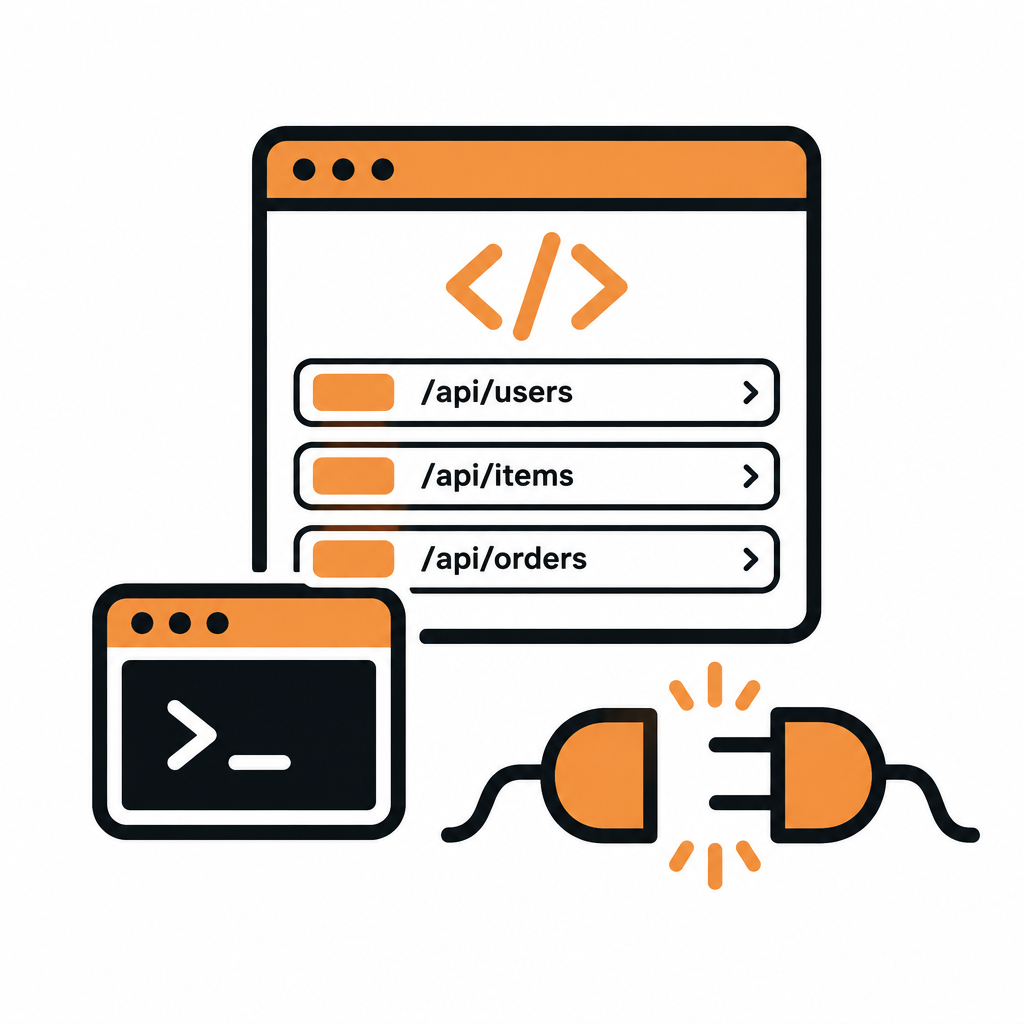
With DocStar you can build a complete developer portal (an interactive API reference, getting-started guides, a public changelog and a blog) in one workspace, on your own domain, without stitching together four different tools. This guide walks through exactly how we recommend setting one up, step by step, and what you get for free along the way: an MCP server so AI assistants can use your API, a CLI generated from your docs, and Markdown copies of every page for AI crawlers.
What a developer portal needs (and how DocStar covers it)
A developer portal is the front door for anyone building on your API. Developers arrive with one of a few jobs: "how do I get started?", "what does this endpoint return?", "what changed?", and increasingly "can my AI assistant use this?". A good portal answers all four in one place.
| What developers need | How DocStar delivers it |
|---|---|
| An accurate API reference they can try | An API collection with endpoint pages, a TRY button, code snippets and a public environment |
| Guides, tutorials and concepts | A Doc collection written in the real-time collaborative block editor |
| A record of what changed | The built-in Changelog (Updates) with versioning, tags, AI drafts and an RSS feed |
| Announcements and deep dives | A Blogs collection with cover images, categories and an RSS feed |
| AI-assistant and terminal access | A hosted MCP server per collection and the DocStar CLI |
| One branded home | Custom domains, themes, header and footer, and a landing page |
Everything lives in one DocStar workspace, so the same team, permissions and publishing flow apply to all of it.
How a DocStar developer portal is structured
In DocStar, everything sits in three levels: a workspace (your team), collections (each one a docs site with its own type, settings, branding and domain) and pages. Every collection has a type: Doc, API, Blogs or Embed (see Choose your docs type).
A typical developer portal uses three collections:
API Reference (type API): modules and endpoints.
Developer Guides (type Doc): quickstart, authentication, tutorials, concepts.
Developer Blog (type Blogs): launches and technical posts. Optional, but great for SEO.
The changelog doesn't need its own collection. It lives inside your Doc or API collection under Updates.
Step 1: Create your API reference
You don't have to start from a blank page. DocStar imports what you already have.
Click the collection name at the top of the left sidebar and choose Import collection.
Drop in an OpenAPI 3.x or Swagger 2.0 file (JSON or YAML), a Postman collection, or a DocStar export, then click Import.
DocStar creates a new API collection with your endpoints and folders.
Prefer to start fresh? Click + (Add Page) in the sidebar and choose Endpoint. You can also paste a curl command into an endpoint's URL field and DocStar fills in the method, URL, headers and body for you.
[Screenshot: DocStar Import collection dialog with an OpenAPI file]
After importing, tidy up each endpoint:
Authorization: choose No Auth, Basic Auth or OAuth 2.0 in the Authorization tab. For API keys or static bearer tokens, add a header such as
x-api-key: {{apiKey}}and keep the value in an environment variable.Environments: create a global environment for shared values like
{{baseUrl}}, so the same request works against staging or production.Descriptions and samples: describe body fields and save real responses with Add to Sample Response. Better descriptions make a better reference for humans and for AI assistants.
Full details are in API Documentation and Import Content. If your API lives in Postman today, our walkthrough How to Turn a Postman Collection into an MCP Server covers the import in more depth.
Make the reference interactive
When you publish an endpoint, readers get a clean reference page with the URL, parameters, headers, body fields and sample responses. They can also:
Click TRY (or press Ctrl+Enter) to send the request from the docs and see the live response.
Copy ready-made code snippets in languages such as Shell (cURL), Node, Python, Java, Go and PHP.
Use a Variables panel filled from a public environment you choose to share.
To share variables, open Settings → Public Environment, click Select Environment, and tick only the variables readers should see (a base URL, yes; your own token, no).
[Screenshot: DocStar published endpoint page with the TRY button and code snippets]
We recently redesigned this experience, including a Copy Prompt button for AI assistants. See The New DocStar API Reference.
Step 2: Write your guides in a Doc collection
An API reference tells developers what each endpoint does. Guides tell them how to get something done. Create a second collection of type Doc for this.
A structure that works well:
Getting started: create an account, get an API key, make a first call.
Authentication: how tokens work, scopes, rotating keys.
Guides: task-based tutorials ("Send your first webhook", "Paginate results").
Concepts: rate limits, errors, idempotency, versioning.
SDKs and tools: including the DocStar CLI (more on that below).
The DocStar editor is a real-time collaborative block editor: type / to insert headings, tables, code blocks, images and more, and several teammates can edit the same page at once. Drag pages in the sidebar to reorder and nest them.
If your team prefers docs-as-code, use GitHub Sync: write Markdown in a docs/ folder, and a GitHub Action syncs every push to your collection. See GitHub Sync.
Step 3: Add a changelog developers can subscribe to
Developers check the changelog before they upgrade. DocStar has one built in.
Open your Doc or API collection and click Updates in the left sidebar.
In Add Change Log, choose Manual, then pick Patch, Minor or Major. DocStar works out the next version number for you (v1.2.3 becomes v1.2.4 for a patch), or choose Manual to type your own.
Add a title, pick a tag (Bug Fixes, Deprecation, Improvements or New Feature) and write the notes.
Click Publish when it's ready.
Short on time? Choose AI Generate, tick the recently updated pages the notes should cover, and DocStar drafts the entry for you to review. You can also turn on Subscribe to changelogs so DocStar drafts an entry whenever pages change.
Published entries appear at /changelog on your docs site, and with a custom domain there's an RSS feed at /changelog.xml. More in Changelog.
[Screenshot: DocStar Updates panel with a Minor release entry]
Step 4: Put it all on your own domain
A custom domain makes your portal feel like part of your product, and it's required for search engines to index your docs. Each collection has its own Domain setting, so you choose where each part lives.
| Portal section | Subdomain option (CNAME) | Path option (Cloudflare Worker) |
|---|---|---|
| Guides | docs.yourcompany.com |
yourcompany.com/docs |
| API reference | api-docs.yourcompany.com |
yourcompany.com/api |
| Blog | blog.yourcompany.com |
yourcompany.com/blog |
For a subdomain: open the collection's Settings → Domain, enter the domain, leave Path empty, save, then add a CNAME record pointing to cname.docstar.io at your DNS provider. For the path option, your domain must use Cloudflare. Read the rules in Custom Domain.
This is exactly how we run our own site: our help docs live at docstar.io/help and this blog at docstar.io/blog, both served by DocStar.
Step 5: Brand it and connect the sections
Now make the separate collections feel like one portal.
Logo, theme and fonts: set the same logo, brand color and fonts on every collection, plus light and dark mode.
Header and footer: add the same navigation (Guides, API Reference, Changelog, Blog, Sign up) to each collection so developers can move between sections. Go to Settings → Header And Footer and click Create header by AI, then describe it: "Logo on the left, links to Docs, API and Pricing, and a Sign up button."
Landing page: give your portal a front door. Use Settings → Templates → Build with AI and describe a "documentation homepage for developers integrating our payments API".
Languages: if you serve a global audience, turn on AI translation so readers can switch language from a menu.
Most branding tabs save and publish in one step, so you don't need to republish pages. For more ideas, see Your Docs, Your Brand.
Step 6: Publish, and let AI assistants in
Pages start as drafts that only your workspace can see. When you're ready:
Go to Settings → Publish Collection and click Publish Collection.
Under Bulk Page Publishing, tick the pages to release and click Publish Selected. Amber dots show pages with edits waiting to go live.
Once published, your portal is ready for AI as well as people, with no extra work:
MCP server: every collection gets its own hosted MCP server. Copy the URL from Settings → MCP (it looks like
https://mcp.docstar.io/connector/your_slug) and share it. Developers add it to Claude, ChatGPT, Cursor or VS Code, and their assistant can search your docs and call your API. Add Sign-in for API calls so each user calls the API with their own account. See Build an MCP Server for Your App.CLI: every published API collection works with the DocStar CLI straight away, for example
docstar-cli your_slug orders create-order. Read DocStar CLI: Turn Your API Docs into Runnable Commands.AI-readable pages: DocStar generates a sitemap and
llms.txt, and adds.mdto any page URL to serve it as Markdown.
That's a developer portal that serves humans in the browser, developers in the terminal, and AI agents in their editor, all from one source.
Keep the portal current
A portal is only useful if it's right. DocStar helps you keep it that way:
Edits never go live by accident. Editing a published page returns it to draft; readers keep seeing the last published version until you publish again.
Activity logs show who changed what and when.
Reader feedback and analytics show which pages work and which confuse people.
Webhooks and the DocStar API let you automate publishing from your release pipeline. See Make Your Docs Part of Your Stack.
Why teams choose DocStar for their developer portal
Many teams build a portal from separate pieces: a reference generator, a static docs site, a changelog tool and a blog platform, each with its own login, theme and publishing process. With DocStar, those are one workspace:
One platform, one team. API reference, guides, changelog and blog share members, roles and branding.
Writers and developers both welcome. A collaborative editor for writers, GitHub Sync and an API for developers.
AI-ready by default. An MCP server per collection, a CLI from your published docs, llms.txt and Markdown copies of every page.
Your brand, your domain. Custom domains, themes, header and footer, landing pages and translation.
Fast to start. Import OpenAPI, Swagger or Postman and have a working reference the same day.
Comparing options? Our guide to the best API documentation tools in 2026 covers the questions to ask.
FAQ
Can I build a whole developer portal in DocStar without code? Yes. Import your API spec, write guides in the editor, add changelog entries, set a domain and brand it from Settings. Code is optional: use GitHub Sync or the DocStar API if you want docs-as-code or automation.
Which API formats can DocStar import? OpenAPI 3.x and Swagger 2.0 (JSON or YAML), Postman collections and DocStar exports. You can also paste a cURL command into an endpoint. GraphQL schema files aren't imported, but you can document GraphQL operations as endpoints.
Can developers test endpoints from the docs? Yes. Published endpoints have a TRY button that sends the request and shows the live response, plus code snippets and an optional public environment for variables like the base URL.
Can the API reference and guides live on the same domain? Yes. Put each collection on its own subdomain with a CNAME record, or under its own path on your main domain using a Cloudflare Worker.
How do AI assistants use my portal? Each collection has a hosted MCP server. Developers add its URL to their AI assistant, which can then search your docs and, with sign-in or an API key, call your API.
Get started free
Your developer portal can be live today: import your API, add a quickstart guide, publish, and share your MCP URL. Get started free with DocStar.
Keep reading
How to Launch a Help Center on Your Own Domain with DocStar
Launch a branded help center on your own domain with DocStar: import articles, add your logo, connect a CNAME, add FAQs and Ask AI, and get indexed by Google.

How to Translate Your Documentation into Multiple Languages with DocStar
Publish your docs in 10 languages with DocStar: write in English, turn on languages, and AI translates every published page with a language menu and clean URLs.