 DocStar
How to Migrate Your Docs to DocStar with Your AI Agent
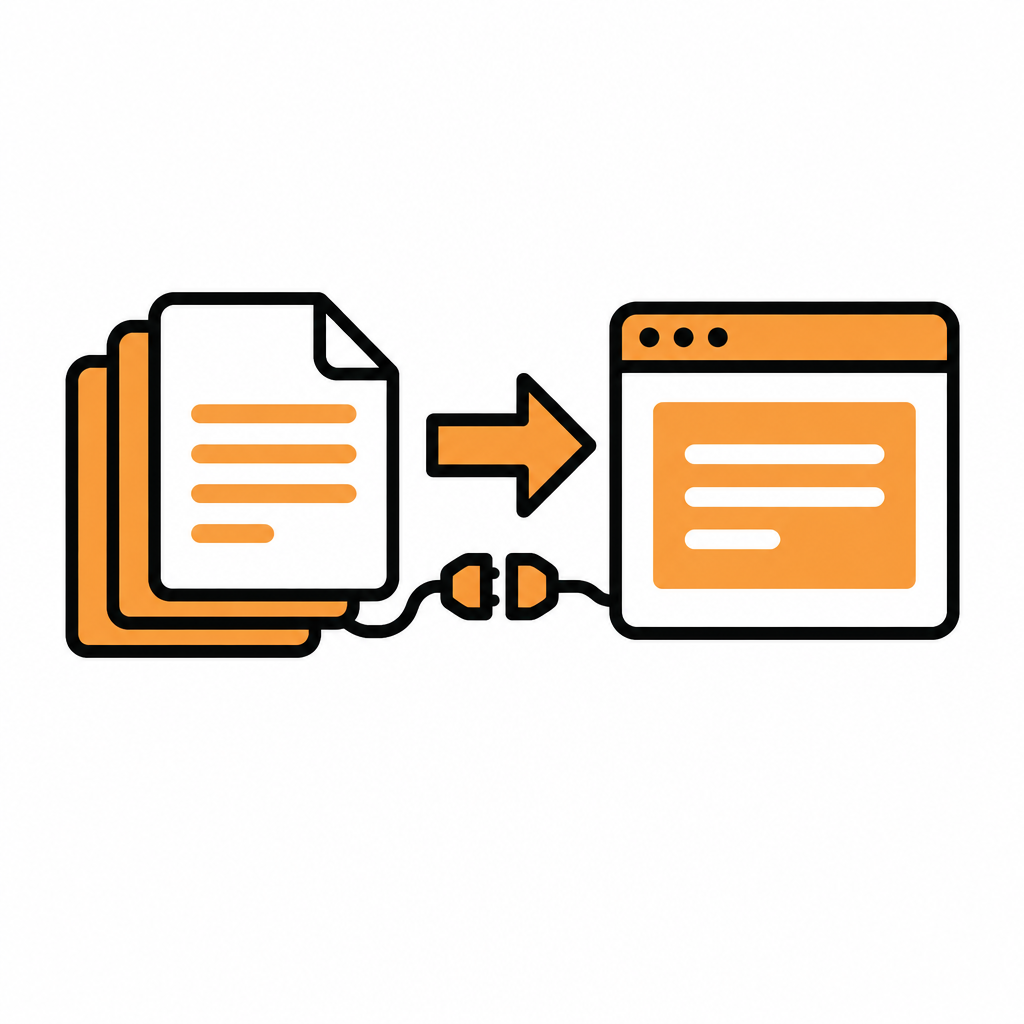
Moving your documentation to DocStar doesn't have to mean a weekend of copy and paste. With DocStar, you connect your AI coding agent (Claude Code, Cursor, Codex or another assistant) to the DocStar MCP, describe the migration in one prompt, and the agent imports your API specs, brings your written guides over as pages and saves everything as drafts. You review, fix the few things that need a human eye, and publish.
This guide shows the agent-first way to migrate your docs to DocStar, what DocStar can import, how to protect your old links, and how to keep the new docs current once you've moved.
Why migrate your docs to DocStar
Most teams don't move docs for fun. They move because the API reference lives in one tool, the help center in another, the changelog in a third, and nobody remembers which login does what. DocStar puts all of that in one workspace:
API docs, help docs, FAQs, changelog and blog in one place, with the same team, roles and branding.
An MCP server for every collection, so AI assistants can search your published docs and, for API collections, call your API.
AI-ready publishing: a sitemap, an
llms.txtfile and Markdown copies of every page.Your domain and your brand: custom domains, themes and translation.
And because DocStar itself has an MCP server, the migration can be done by the same AI agent you already use for code.
What DocStar can import
Before you write a prompt, it helps to know what DocStar accepts. From our Import Content guide:
| Source | File format | What DocStar creates |
|---|---|---|
| OpenAPI 3 | .json or .yaml |
A new collection with your endpoints |
| Swagger 2.0 | .json or .yaml |
A new collection (converted to OpenAPI automatically) |
| Postman collection | .json |
A new collection with your requests and folders |
| DocStar export | .json |
A copy of a collection exported from DocStar |
| Markdown | .md, .markdown or .mdx |
New pages inside an existing collection |
Other formats, such as XML, aren't supported. Markdown import isn't available for Embed collections. If your written docs live in another docs tool or a wiki, export them as Markdown first; if they already live in a Git repo as Markdown, you're ready.
Migrate your docs with your AI agent (the recommended way)
This is the workflow we use and recommend. Your agent does the repetitive work; you make the calls that need judgment.
Step 1: Connect your agent to DocStar
Add DocStar to your assistant once. If DocStar is in your assistant's connector directory, connect it from there. If not, add it as a custom (remote) MCP server with this URL:
https://mcp.docstar.io/mcp
The first time the agent needs your workspace, you sign in to DocStar in your browser. There's no API key to copy, and the agent only sees the workspaces and collections your DocStar account can access, with the same permissions you have. Full steps are in Connect Your AI Assistant.
Step 2: Give it one prompt
Open your agent in the repo or folder that holds your old docs and paste something like this:
Use the DocStar MCP to migrate our documentation into DocStar. Import our OpenAPI spec in
openapi.yamlas a new API collection. Then create a "Help Docs" collection and bring over every Markdown file indocs/as a page, keeping the same folder structure and page order. Keep each page's old URL slug where you can. Make a list of any old URLs that will change. Save everything as drafts, show me your plan before you change anything, and don't publish.
Adjust the file names and collection names to match your project. If your API spec is out of date, say so: ask the agent to read your latest code for the API instead and document each endpoint with a clear description and a full JSON body example, the same approach our How to Document a REST API with DocStar guide describes.
Step 3: Let the agent do the heavy lifting
Here's what the agent does through the DocStar MCP:
Finds your workspace and the right collections, or proposes new ones.
Shows you its plan and asks before it creates or changes anything.
Imports your API spec as a collection of endpoints.
Creates your guide pages from your Markdown files, with titles and slugs.
Lists the URLs that changed, so you can redirect them.
Leaves everything as drafts. Imported pages and endpoints start as drafts, so nothing reaches readers (or your MCP server) until you publish.
[Screenshot: Coding agent showing its DocStar migration plan before making changes]
Step 4: Review like an editor, not a typist
Your job now is review, not retyping. Open the new collections in DocStar and check:
Structure and naming. Does the sidebar read the way a new customer would expect? Rename or reorder anything that feels off.
What stays private. Old docs often hide internal notes, test endpoints or half-finished pages. Decide what to leave out before you publish.
API details. Check imported endpoints for base URLs and auth settings, as our import guide recommends.
Tone and leftovers. Files exported from another tool can carry formatting that only made sense there. Tidy it up, or ask the agent to do it: "Clean up leftover formatting on every page in Help Docs and show me the diff first."
Want help with a big batch? Ask the agent for a review checklist of every imported page, then work through it.
Step 5: Protect your old links with redirects
Links from search results, blog posts and support replies still point at your old URLs. DocStar handles redirects in two ways, both covered in our Redirects guide:
Automatic redirects whenever you change a page's slug or move a page in DocStar.
Manual redirects in Settings > Redirections, made for exactly this case: old paths visitors are still using after a migration from another tool.
Redirects only help if readers reach DocStar first, so this matters most when your DocStar docs take over the same domain as your old docs. Hand the agent the list of changed URLs from Step 3:
For every old URL in this list, add a redirect in the Help Docs collection to the matching new page. Show me the full list before you save.
Step 6: Put the docs on your domain and publish
Connect a custom domain such as docs.yourcompany.com (CNAME) or a path such as yourcompany.com/help (Cloudflare Worker). This matters for SEO: pages on the default DocStar link are marked noindex, so search engines only index your docs on your own domain.
When you're happy, publish. DocStar then serves your docs with a sitemap, an llms.txt file and a Markdown copy of every page, and each collection's MCP server can search and read the published pages. Drafts never reach your MCP server.
Keep it current after the move
A migration is only worth it if the new docs don't drift. With DocStar you have two agent-friendly options.
Option 1: GitHub Sync. Keep Markdown pages in a docs/ folder and OpenAPI files in an api-docs/ folder in your repo. On every push that changes them, a GitHub Action sends the changes to DocStar, which creates, updates or archives the matching pages and endpoints. New items are created as drafts unless you mark them as published. The repo also holds a docstar.md format guide that your AI coding assistant reads, so the agent writes docs in the right shape whenever it changes code. See GitHub Sync.
Option 2: A standing instruction for your agent. If you'd rather edit in DocStar, add a short rule to your repo's AGENTS.md or CLAUDE.md:
## API docs (DocStar)
Docs: <collection URL> (org <orgId>, collection <collectionId>)
When an API changes, update its endpoint in DocStar with the DocStar MCP (https://mcp.docstar.io/mcp). Save as draft; publish only when asked.
Now every time your agent changes an endpoint, it updates the docs too, and you approve the draft.
Prefer to do it by hand?
You can run the whole migration in the DocStar app:
API spec: click the collection name at the top of the left sidebar, choose Import collection, and drop in your OpenAPI, Swagger or Postman file.
Markdown pages: open the collection, go to Settings > Collection Actions, click Import next to Import Pages, and select your
.mdor.mdxfiles. You can pick several at once; each becomes a page.Redirects: in Settings > Redirections, type the old slug, pick the destination page and click Add.
It works well for small sites. For anything bigger, let the agent do the repetitive part.
Why teams choose DocStar
One home for every kind of doc. API reference, guides, FAQs, changelog and blog share one workspace, one team and one brand. See how it fits together in How to Build a Developer Portal with DocStar.
Agent-first from day one. Your AI assistant can do your documentation work through the DocStar MCP, and asks before it changes anything.
AI-ready output. Every collection gets its own MCP server, plus a sitemap,
llms.txtand Markdown copies of every page.Safe by default. Imports and agent changes land as drafts. Nothing goes live until a person publishes it.
Old links keep working. Automatic and manual redirects protect your traffic through the move.
FAQ
Can my AI agent migrate my docs to DocStar for me?
Yes. Connect Claude Code, Cursor, Codex or another assistant to the DocStar MCP at https://mcp.docstar.io/mcp, sign in once in your browser, and ask it to import your specs and Markdown pages. It works with your permissions, asks before changing anything, and your imports start as drafts.
What formats can I import into DocStar?
OpenAPI 3 and Swagger 2.0 (.json or .yaml), Postman collections, DocStar exports, and Markdown files (.md, .markdown, .mdx). Other formats, such as XML, aren't supported.
Will my old documentation URLs break?
Not if you add redirects. In Settings > Redirections you can point each old path to its new page, and DocStar adds redirects automatically when you later rename or move a page.
Will my migrated docs show up in Google?
They can be indexed once they're published on a custom domain. Pages on the default DocStar link are marked noindex, so connect your own domain to get indexed.
Does anything go live during the migration?
No. Imported pages and endpoints normally start as drafts, and drafts never reach your MCP server. You decide when to publish.
Get started free
Bring your docs into one DocStar workspace, on your own domain and ready for AI assistants. Connect your agent, paste the prompt above, and review the drafts.
Keep reading
What Is OpenAPI? A Plain-English Guide
What is OpenAPI? A plain-English guide to the API spec, plus how DocStar turns it into API docs, an MCP server and a CLI, with your AI agent doing the writing.
MCP vs Function Calling vs Plugins: What's the Difference (and Where DocStar Fits)
MCP vs function calling vs plugins explained: how each lets AI use your tools, and how DocStar turns your API docs into one MCP server for every assistant.